RTC
This chapter explains how to read and write the Luckfox Lume RTC and synchronize the system clock.
1. RTC
An RTC (Real-Time Clock) is a dedicated hardware timekeeping module in embedded systems and microcontrollers. It typically has an independent backup power supply, commonly a coin cell, so it can continue running and keep track of the date and time when the device's main power is disconnected. By retaining the time during power loss, an RTC provides a stable time reference for applications such as log timestamps, scheduled wakeups, system clock synchronization, and scheduled tasks.
2. RTC Testing (Shell)
2.1 Viewing RTC Devices
Run on the board:
ls -l /dev/rtc*
cat /sys/class/rtc/rtc0/name
dmesg | grep -i rtc
2.2 Reading and Writing the RTC
Linux includes the hwclock tool for reading the current date and time from the RTC hardware clock. Run the following command to display the RTC time.
-
Read the RTC time:
hwclock --showSpecify the RTC device:
hwclock -f /dev/rtc0 --show -
Set the RTC time:
date -s "2026-09-02 12:00:00" # Set the system time firsthwclock -f /dev/rtc0 --systohc # Write the system time to the RTC -
Restore the system time from the RTC:
hwclock -f /dev/rtc0 --hctosys
3. Reading and Writing the RTC (Python)
-
Complete code: By default, the program only reads the RTC.
writewrites the system time to the RTC, andsyncrestores the system time from the RTC. Both operations read the RTC afterward so you can check the result.#!/usr/bin/env python3import subprocessimport sysRTC_DEVICE = "/dev/rtc0"def run_hwclock(option):result = subprocess.run(["hwclock", "-f", RTC_DEVICE, "-u", option],capture_output=True, text=True, check=True)return result.stdout.strip()def get_rtc_time():rtc_time = run_hwclock("-r")if not rtc_time:raise RuntimeError("hwclock returned no time")print(f"RTC time: {rtc_time}")def set_rtc_from_system():run_hwclock("-w")print("RTC time set from system (UTC).")def sync_system_from_rtc():run_hwclock("-s")print("System time loaded from RTC (UTC).")def main():if len(sys.argv) > 2:print("Usage: RTC.py [read|write|sync]", file=sys.stderr)return 1mode = sys.argv[1] if len(sys.argv) == 2 else "read"if mode not in ("read", "write", "sync"):print("Usage: RTC.py [read|write|sync]", file=sys.stderr)return 1try:if mode == "write":set_rtc_from_system()elif mode == "sync":sync_system_from_rtc()get_rtc_time()except subprocess.CalledProcessError as error:message = error.stderr.strip() or f"hwclock exited with {error.returncode}"print(f"RTC error: {message}", file=sys.stderr)return 1except (OSError, RuntimeError) as error:print(f"RTC error: {error}", file=sys.stderr)return 1return 0if __name__ == "__main__":sys.exit(main()) -
Read the RTC time:
rtc_time = run_hwclock("-r")Call
hwclock -f /dev/rtc0 -u -rto retrieve the time.check=Truechecks the command's exit status. If the command fails or produces no time output, an error is reported and subsequent operations are not performed. -
Write the system time to the RTC:
run_hwclock("-w")Write the current system time to the RTC in UTC. Before running this operation, verify the system time by setting it manually or synchronizing it through NTP.
-
Restore the system time from the RTC:
run_hwclock("-s")Synchronize the Linux system clock with the RTC time. This requires root privileges.
-
Main program:
if mode == "write":set_rtc_from_system()elif mode == "sync":sync_system_from_rtc()get_rtc_time()readis read-only.writeandsyncmust be explicitly specified to prevent accidental clock changes when running the example. The program returns a nonzero exit code on failure. -
Run the program:
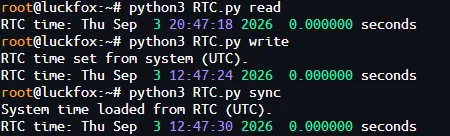
python3 RTC.py read # Read the RTC timepython3 RTC.py write # Write after verifying the system timepython3 RTC.py sync # Restore the system time from the RTC when neededdateOutput:
4. Reading and Writing the RTC (C)
-
Complete code:
#define _POSIX_C_SOURCE 200809L#include <stdio.h>#include <stdlib.h>#include <string.h>#include <sys/wait.h>#define HWCLOCK "hwclock -f /dev/rtc0 -u "static int command_succeeded(int status){return status != -1 && WIFEXITED(status) && WEXITSTATUS(status) == 0;}static int get_rtc_time(void){char rtc_time[256];FILE *pipe = popen(HWCLOCK "-r", "r");if (!pipe) {perror("RTC read");return -1;}int got_time = fgets(rtc_time, sizeof(rtc_time), pipe) != NULL;int read_failed = ferror(pipe);int status = pclose(pipe);if (!got_time || read_failed || !command_succeeded(status)) {fprintf(stderr, "RTC error: hwclock read failed\n");return -1;}rtc_time[strcspn(rtc_time, "\r\n")] = '\0';if (rtc_time[0] == '\0') {fprintf(stderr, "RTC error: hwclock returned no time\n");return -1;}printf("RTC time: %s\n", rtc_time);return 0;}static int set_rtc_from_system(void){if (!command_succeeded(system(HWCLOCK "-w"))) {fprintf(stderr, "RTC error: cannot write system time to RTC\n");return -1;}puts("RTC time set from system (UTC).");fflush(stdout);return 0;}static int sync_system_from_rtc(void){if (!command_succeeded(system(HWCLOCK "-s"))) {fprintf(stderr, "RTC error: cannot set system time from RTC\n");return -1;}puts("System time loaded from RTC (UTC).");fflush(stdout);return 0;}int main(int argc, char *argv[]){if (argc > 2) {fprintf(stderr, "Usage: RTC [read|write|sync]\n");return EXIT_FAILURE;}const char *mode = argc == 2 ? argv[1] : "read";if (strcmp(mode, "read") == 0) {} else if (strcmp(mode, "write") == 0) {if (set_rtc_from_system() < 0)return EXIT_FAILURE;} else if (strcmp(mode, "sync") == 0) {if (sync_system_from_rtc() < 0)return EXIT_FAILURE;} else {fprintf(stderr, "Usage: RTC [read|write|sync]\n");return EXIT_FAILURE;}return get_rtc_time() < 0 ? EXIT_FAILURE : EXIT_SUCCESS;} -
Read the RTC time:
FILE *pipe = popen(HWCLOCK "-r", "r");Use
popen()to retrieve the time output fromhwclock. Check the results offgets()andpclose(), and display the time only if the read succeeds and the command exits successfully. -
Write the system time to the RTC:
system(HWCLOCK "-w")Write the system time to the RTC and use
command_succeeded()to check whether the command succeeded. Return a nonzero exit code on failure. -
Restore the system time from the RTC:
system(HWCLOCK "-s") -
Main program:
const char *mode = argc == 2 ? argv[1] : "read";The default operation is read-only. When
writeorsyncis selected, perform the corresponding operation, then callget_rtc_time()to display the RTC time. -
Cross-compile using the Lume ARM toolchain.
export PATH=<Luckfox_Lume_SDK>/out/toolchain/gcc-linaro-11.3.1-2022.06-x86_64_arm-linux-gnueabihf/bin:$PATHarm-linux-gnueabihf-gcc -std=c11 -O2 -Wall -Wextra RTC.c -o RTC -
Run the program:
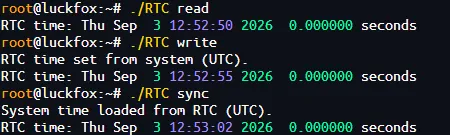
chmod +x RTC./RTC read # Read the RTC time./RTC write # Write to the RTC after verifying the system time./RTC sync # Restore the system time from a valid RTC timeOutput:
5. System Clock Synchronization
Network time synchronization first corrects the Linux system time, then writes the accurate time to the RTC. The Lume Buildroot SDK includes BusyBox hwclock and ntpd from the NTP package. The service is managed through /etc/init.d/S49ntp.
-
Check the time synchronization tools and service:
command -v hwclockcommand -v ntpdls -l /etc/init.d/S49ntpps | grep -E 'ntpd|phc2sys|ptp4l' -
Change the time zone:
ln -snf /usr/share/zoneinfo/Asia/Shanghai /etc/localtimeunset TZroot@luckfox:~# date -RThu, 03 Sep 2026 21:12:51 +0800unset TZremoves the environment variable override in the current shell. -
Synchronize the time over the network and write it to the RTC:
-
Stop the background NTP service first:
/etc/init.d/S49ntp stop -
Run a one-time synchronization in the foreground, then write the system time to the RTC if it succeeds:
ntpd -g -q -n && hwclock -f /dev/rtc0 -u -w-g: Allow a large time offset to be corrected during the first synchronization.-q: Exit after one synchronization.-n: Run in the foreground so the output is visible.&&: Write to the RTC only if the synchronization command exits successfully.
-
Check the time after completion:
datehwclock -f /dev/rtc0 -u -r -
Finally, restart the background NTP service:
/etc/init.d/S49ntp startThe default SDK already starts the service at boot through the
S49ntpstartup script. No additional systemd commands are needed to enable automatic startup.
-